> For the complete documentation index, see [llms.txt](https://docs.hology.app/llms.txt). Markdown versions of documentation pages are available by appending `.md` to page URLs; this page is available as [Markdown](https://docs.hology.app/visual-effects/lens-flare-tutorial.md).
# Lens flare tutorial
## What is a lens flare?
When you point a camera at the sun or a bright light, you sometimes see extra bright shapes, rings, or streaks in the picture. These shapes are called lens flare. Game engines copy this look to make games and 3D projects feel more cinematic.\\
\
Because lens flare happens when light is bouncing around inside the camera lens, not out in the real world, that means:
* A normal glow effect usually sits around the light (for example, around a lamp or a fireball).
* A lens flare effect appears on top of the screen, as if it is in front of everything, because it is happening in the camera.
So sometimes it looks like the flare is in front of buildings or trees. This is because the effect is drawn in the camera image, not stuck to the light object in 3D space.
Below are the steps to set up a lens flare in Hology
Create/obtain a lens flare image\\
Create or find a PNG image/texture of a lens flare with a transparent background.
\
This is the picture the engine will draw on the screen as the flare.
## Import the file to Hology Engine
1. Open Hology Engine, select an existing project or create a new project.
2. Drag and drop the PNG file into the asset browser, make sure to give it a clear name, such as *T\_OrangeFlare*
## Create a new material
1. In the asset browser, select → Add New → select Material.
2. On top, give it a clear name, for example: *M\_OrangeFlare*, so you remember what it is for.
3. Look for the Type setting, choose Sprite. This tells Hology that this material will draw a flat 2D image, perfect for a lens flare.
4. Scroll down to the Properties section.
5. Find the Map, select the PNG file you imported into the asset browser.
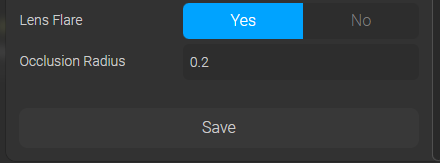
6. Find the Lens Flare category in Properties, set it to YES, and press Save.
## Implement in the scene
1. In the asset browser, click top left (highlighted yellow below image)→select Shapes.
1. Find Plane in the asset browser (highlighted yellow above image), then drag and drop it into the project scene.
2. In the Plane’s edit panel, scroll to the bottom to find the Materials category, and select the Material you just created.
3. Now you can drag the plane anywhere you want the lensflare to show, for example, somewhere around the street light 3D model.
4. You can also adjust the size of the lens flare by selecting the plane and clicking the scale option in the left utility bar on the screen.
Now you are ready to try and find the lensflare that fits your environment!